
Best SD Cards For MacBook Air
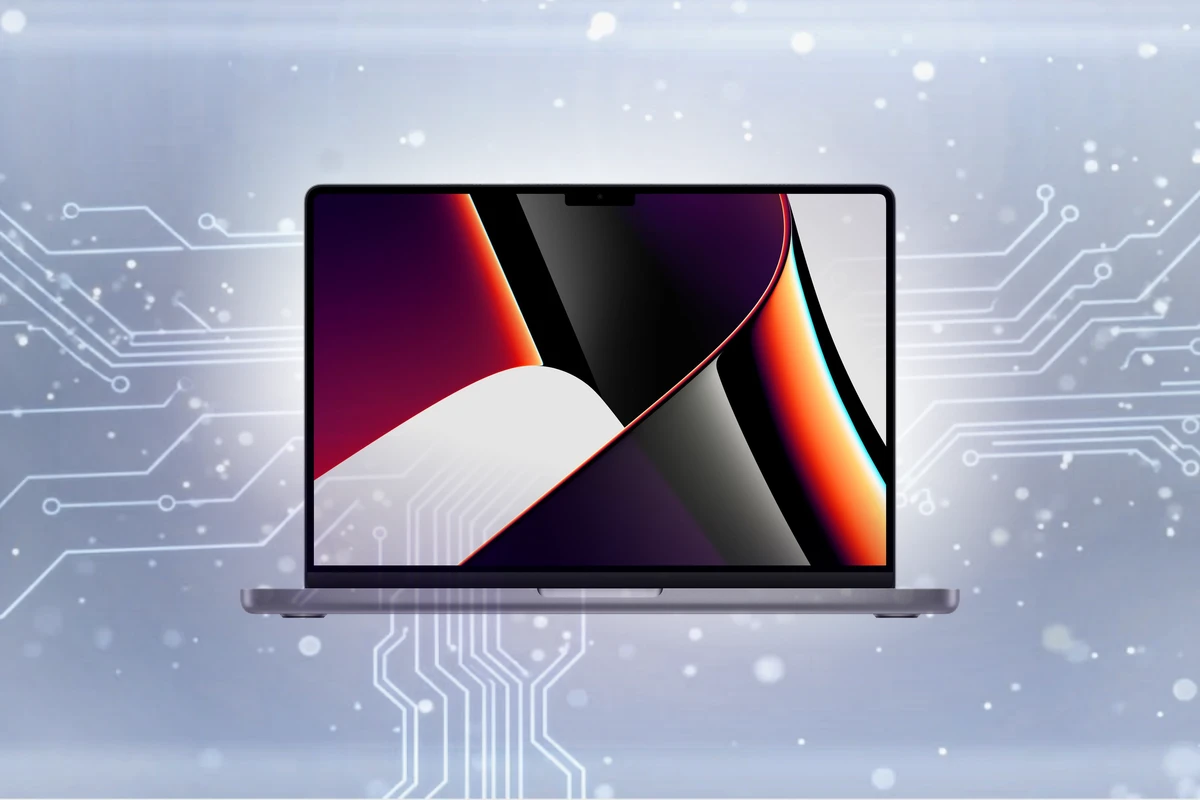
Expert recommendations based on MacBook Pro specifications
Recommended Spec
Built-in SDXC UHS-II slot (14/16-inch, 2021+); USB-C reader on 13-inch (UHS-I to UHS-II or faster)
The 14-inch and 16-inch MacBook Pro (2021 and later) have a built-in SDXC slot that supports UHS-II. The 13-inch models have no slot and need a USB-C reader.
Contains affiliate link
#1 Top Pick for MacBook
View Top Recommendation
Check Price
Official MacBook SD Card Requirements
-
Format: Built-in SDXC UHS-II slot (14/16-inch, 2021+); USB-C reader on 13-inch
-
Minimum Speed: UHS-I to UHS-II
-
Maximum Capacity: undefined
Why these requirements? Apple brought the SDXC slot back on the 14-inch and 16-inch MacBook Pro in 2021, and it supports UHS-II at up to about 250 to 300 MB/s. The 13-inch MacBook Pro has no slot. For CFexpress or faster offloads, use a Thunderbolt reader.
Detailed Specifications
Type
Built-in SDXC UHS-II slot (14/16-inch, 2021+); USB-C reader on 13-inch
Min Speed Class
UHS-I to UHS-II
Write Speed
undefined
Recommended Size
128GB, 256GB
Top SD Card Recommendations
This website contains affiliate links. We may earn a small commission when you purchase through our links at no extra cost to you.
| SD Card | Verified | Speed Class | Write Speed | Pros | Price |
|---|---|---|---|---|---|
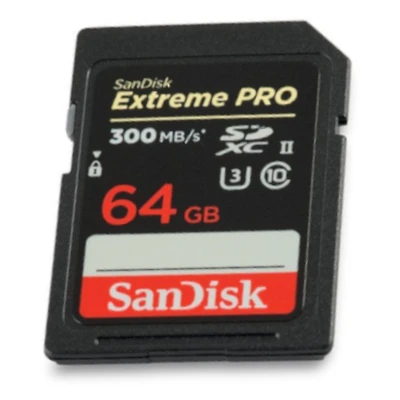
SanDisk Extreme PRO SD UHS-II
|
V90 | Up to 260 MB/s |
|
$$ Check Price |
Compare These Cards
Open in full compare toolSee how the recommended cards for MacBook Pro stack up side by side, or swap in any other card.
professional
View on Amazon
SanDisk Extreme PRO SD UHS-II
$$ · Premium- UHS RatingUHS-II
- Speed ClassV90
- App PerformanceN/A
- Read SpeedUp to 300 MB/s
- Write SpeedUp to 260 MB/s
- EnduranceStandard
Available Capacities32GB, 64GB, 128GB, 256GB, 512GB
Pros
- V90 UHS-II card for high-bitrate video and fast bursts.
Cons
- High cost per GB.
Add a card to compare
Add a card to compare
Featured Products on Amazon
This website contains affiliate links. We may earn a small commission when you purchase through our links at no extra cost to you.

Kingston Canvas Go Plus 128GB microSD Card | Up to 200MB/s | Class 10, UHS-I, U3, V30, A2 | SDCG4/128GB
Check Price
View on Amazon


Kingston 128GB Canvas Select Plus microSD Card | Up to 150MB/s | Class 10, UHS-I, U1, V10, A1 | SDCS3/128GB
Check Price
View on Amazon
Frequently Asked Questions
What SD Card Do I Need for MacBook Pro?
The MacBook Pro takes a Built-in SDXC UHS-II slot (14/16-inch, 2021+); USB-C reader on 13-inch card rated UHS-I to UHS-II or faster. 128GB or 256GB covers most owners, and the maximum is undefined. Buy SanDisk, Lexar, Samsung or Kingston from a reputable seller: counterfeit cards are the most common cause of lost files.
Does the MacBook Pro have an SD card slot?
The 14-inch and 16-inch models from 2021 onward do. The slot supports UHS-II. The 13-inch MacBook Pro has no slot.
Is the MacBook Pro SD slot UHS-II?
Yes. It reads UHS-II cards at up to about 250 to 300 MB/s.
Is UHS-I to UHS-II required for MacBook Pro?
Yes. UHS-I to UHS-II is the minimum that keeps the MacBook Pro free of slow loads, stutter, or write errors. Faster cards work too.
What size SD card should I get for MacBook Pro?
128GB covers light use; 256GB suits heavy use.
Can I use older or slower cards with MacBook Pro?
Not below UHS-I to UHS-II. Slower cards cause slow loads, stutter, or write errors. Check the card label for the UHS-I to UHS-II mark.
Does the card type matter for MacBook Pro?
The MacBook Pro accepts Built-in SDXC UHS-II slot (14/16-inch, 2021+); USB-C reader on 13-inch. Choose by speed class and capacity; the device's limits are the same for each.
Should I use more than one card with MacBook Pro?
For long shoots, yes. Two mid-size cards cost about the same as one large card, and a failure then loses half your files instead of all of them.
Does the brand matter for MacBook Pro?
Yes. SanDisk, Lexar, Samsung and Kingston cards meet their rated speeds. Buy from the brand's store or a major retailer: counterfeit cards sold under those names are common on marketplaces.
What happens if I use the wrong card with MacBook Pro?
A card slower than UHS-I to UHS-II causes slow loads, stutter, or write errors. A card over the maximum capacity or in the wrong format may not be recognized.
How long will an SD card last in MacBook Pro?
Several years in normal use. Cards usually fail from wear or counterfeit flash, not age. Replace yours at the first write error, corrupted file or "card not recognized" message.