
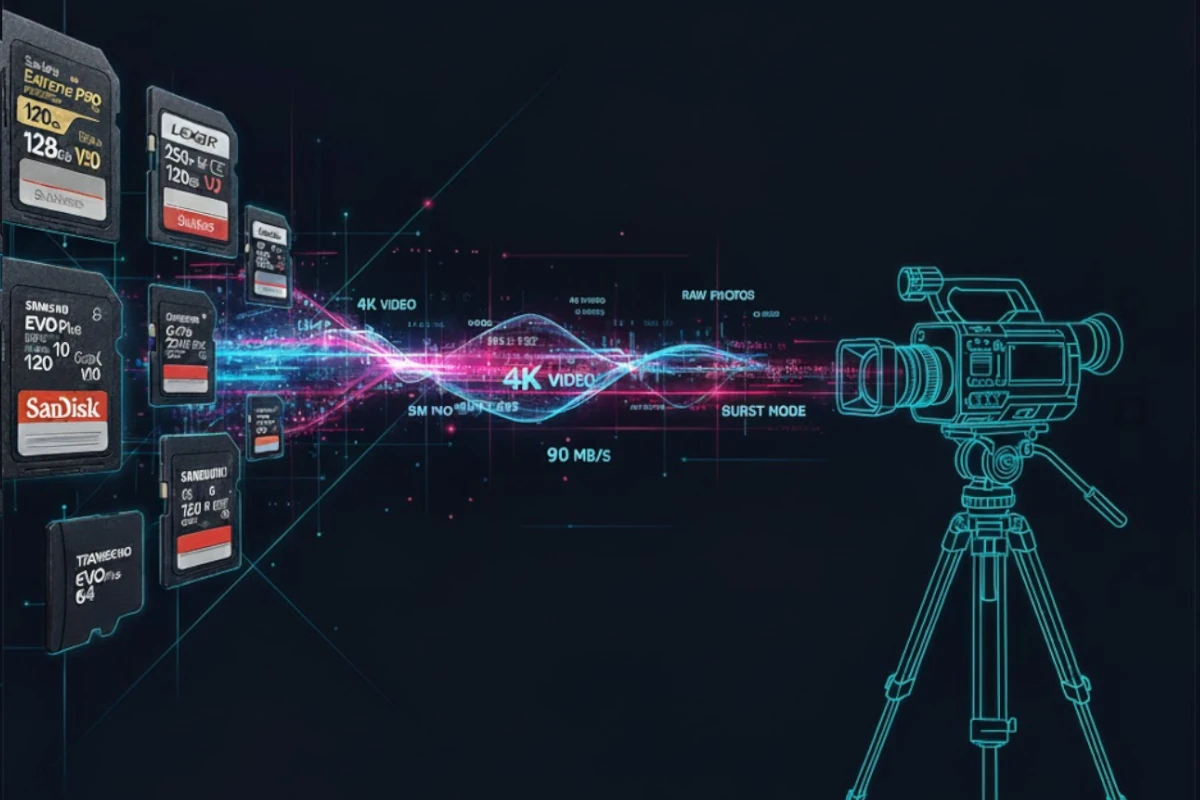
Dropped frames, corrupted footage, and failed recordings are photographer and videographer nightmares—and they often happen because of the wrong card. This calculator helps you plan every shoot with confidence by showing exactly how long you can record on your SD card based on resolution, bitrate, and codec.
Whether you're shooting 1080p or 8K, using H.264 or ProRes, this tool instantly calculates recording time, recommends the minimum speed class (V30, V60, V90), and suggests the ideal card capacity. No more guessing what bitrate your camera uses, no more surprises when your card fills mid-take—just the assurance that your card can handle your workflow.
4K to 1080p Support
Any resolution, any bitrate
Codec Comparisons
H.264, H.265, ProRes
Speed Class Match
Automatic recommendations
Quick note: Bitrate is measured in Mbps (megabits per second). Write speed is measured in MB/s (megabytes per second). To convert: 1 MB/s = 8 Mbps.
Why This Matters: The High Cost of Video Recording Failures
For videographers, the consequences of an undersized or slow SD card are severe. Unlike photography, where you can shoot another frame, video failure is catastrophic: dropped frames create stuttering and sync issues that ruin the entire take. A card that's too slow causes buffer overflow, forcing the camera to stop recording mid-scene. Footage corrupted by a full card isn't recoverable.
Bitrate compounds the problem. A 4K 60fps H.265 stream uses vastly more data than 1080p 30fps H.264. Many videographers guess at bitrates, leading to miscalculations—you think your card has 30 minutes of recording time but run out in 15. With expensive camera rigs, talent, and location fees, that's not just an inconvenience; it's a financial loss.
This calculator removes guesswork. Enter your camera's actual bitrate, desired duration, and resolution—we'll tell you exactly what card capacity and speed class you need. Film with confidence, knowing your card won't let you down.
Frequently Asked Questions
H.264 (AVC): The industry-standard compression codec for decades. It balances quality and file size effectively—which is why it's in virtually every camera, smartphone, and editing software. Compatible with almost all playback devices and editing platforms. Bitrates typically range from 25 Mbps (1080p) to 150 Mbps (4K). The downside: less efficient compression means larger files than newer codecs.
H.265 (HEVC): The modern successor to H.264. It's roughly 40-50% more efficient, meaning you get the same visual quality at half the file size—or higher quality at the same bitrate. A 4K 60fps H.265 stream at 100 Mbps looks better than H.264 at the same bitrate. Catch: support is still rolling out on older devices and editing software, and patents make licensing complex.
ProRes (Apple): Professional mezzanine codec designed for high-end post-production. Files are 2-3x larger than H.264 at the same bitrate, but the quality is lossless-like and ideal for color grading, effects work, and final mastering. ProRes is standard in Hollywood workflows but only on professional cameras and editing suites (Final Cut Pro, DaVinci Resolve).
Which to choose? H.264 for maximum compatibility and smaller files. H.265 if your camera and software support it (saves 40-50% storage). ProRes only if you're doing professional color work or mastering.
4K 30fps H.264: V30 is the absolute minimum. V30 guarantees 30 MB/s sustained write speed. Most professional 4K cameras specify V30 or better for this mode. Anything slower risks buffer overflow and dropped frames.
4K 60fps or high-bitrate 4K: V60 is strongly recommended. 60fps doubles the data rate, and faster bitrate modes (like ProRes or H.265 high bitrate) require sustained writes above 40 MB/s. V60's 60 MB/s headroom prevents stalls.
8K, professional cinema, or RAW video: V90 required. 8K and cinema workflows (DCI 4K, RAW codecs like Blackmagic) can exceed 100 MB/s write requirements. V90 guarantees 90 MB/s minimum, essential for reliability.
Rule of thumb: Always check your camera's manual for the minimum recommended speed class for each recording mode. Using a slower card than recommended causes buffer overflow, dropped frames, and corrupted footage—not worth the risk on a professional shoot.
Method 1 (Most Reliable): Check your camera's manual or settings menu. Most modern cameras display bitrate in the video recording mode settings or in the manual's technical specifications. Search "[Camera Model] bitrate" on DPReview or the manufacturer's site. For example: Sony A6700 lists 100 Mbps for 4K 30fps, 200 Mbps for 4K 60fps.
Method 2 (Empirical Test): Record a known duration (e.g., exactly 1 minute), check the resulting file size in MB. Then: File Size (MB) × 8 ÷ Duration (minutes) = Bitrate in Mbps. Example: 1-minute recording = 750 MB file → 750 × 8 ÷ 1 = 6000 Mbps. Repeat at different recording modes (1080p vs 4K, 30fps vs 60fps) to map your camera's bitrates.
Method 3 (Estimation): Use our preset values as a starting point: ~50 Mbps for 1080p 30fps, ~100 Mbps for 4K 30fps, ~200 Mbps for 4K 60fps, ~400+ Mbps for ProRes. These are ballpark figures; always confirm with your camera's actual specs to avoid surprises.
Pro tip: Different cameras vary wildly. A GoPro records 4K at 100 Mbps; a cinema camera might exceed 1000 Mbps. Always verify your specific model.
Yes, if your device supports microSD. Action cameras (GoPro, DJI), drones, and many smartphones use microSD cards. Performance is identical to full-size SD cards—a V30 microSD is just as fast as a V30 full-size SD. The only difference is physical size.
Key consideration: Use a microSD-to-SD adapter only if necessary. Adapters add a point of failure and can slightly reduce performance. If your camera supports microSD natively, just use the microSD directly. Always confirm your camera's microSD support in the manual—not all cameras accept microSD, and some require a specific type (UHS-I vs UHS-II).
Storage calculation: Use this calculator the same way—bitrate, duration, resolution. MicroSD cards come in smaller capacities (256GB max, typically), so plan accordingly if you're shooting high-bitrate 4K for extended periods.
UHS-II: The current standard bus interface for most SD cards. Theoretical max speed of 312 MB/s. In practice, write speeds max around 200-260 MB/s. This is more than enough for 4K 60fps, ProRes, and most professional workflows.
UHS-III: Newest standard with theoretical speeds up to 624 MB/s (actual: 400+ MB/s write). Only found on premium cards and required for extreme workflows: 8K recording, DCI cinema capture, high-bitrate RAW video (like Blackmagic or RED).
Backward compatibility: UHS-III cards work in UHS-II slots, but at UHS-II speeds. Your camera's slot determines which you can use—check your manual. Most cameras released before 2020 are UHS-II only.
For most users: UHS-II is sufficient and more affordable. Only upgrade to UHS-III if you're shooting 8K, RAW video, or professional cinema work.
We recommend buying cards 25-50% larger than your calculated needs. Here's why:
- Camera firmware & metadata: Your camera reserves 0.5-2% of card capacity for its own files. A "256GB" card is really ~240GB usable.
- Performance degradation: As cards approach full capacity, write speed drops significantly. A V60 card at 95% full might perform like V30. Keeping 25-50% free ensures sustained speed throughout the session.
- Calculation margin: Bitrate estimates vary. A 100 Mbps camera might actually use 105 Mbps under certain conditions. Overprovision protects against real-world variations.
- Recording safety: If your card hits absolute maximum capacity mid-take, the camera stops recording and may corrupt the footage. The safety margin prevents this disaster.
Professional practice: Many videographers buy cards with 2x the calculated capacity. This ensures peak performance, eliminates margin-of-error risk, and maximizes card lifespan. It costs more upfront but prevents expensive reshoot situations.
Featured Products
This website contains affiliate links. We may earn a small commission when you purchase through our links at no extra cost to you.
